How to Whitelist [email protected]
*Recently changed from [email protected] to [email protected]*
Unsolicited, unwanted advertising email, commonly known as “spam,” has become a big problem. It’s reached such proportions that most email services and internet service providers (ISPs) have put some sort of blocking or filtering system in place or begun relying on self-proclaimed “blacklists” to tell the good guys from the bad.
We applaud their intentions to protect you from spam, but everyone agrees that the current systems for stopping spam are far from a perfect solution. They too often block email that you’ve requested, but that fits somebody’s idea of what spam looks like.
The more responsible anti-spam companies and activists are working hard to cut down on these “false positives,” but in the meantime, you might unexpectedly find that you’re not getting the emails you subscribed to…
As it happens, there’s something you can do to keep the emails you value from falling into the false positive trap. You can fight the blacklists with a “whitelist.” Whitelist every new subscription right at the start, before your delivery is interrupted.
Of course, every email system is different. Below are instructions for some of the more popular ones, including Gmail, Comcast, Yahoo, Outlook and AOL. If yours isn’t here, please contact your ISP’s customer service department for their instructions.
| One thing you can do no matter what email system you’re using is add the address in the “From” line of the The Horn News e-letter to your address book. This address is: [email protected] |
GMAIL
Gmail has recently implemented a new tab feature. To ensure that you continue to get your emails from The Horn News, please follow these instructions to allow The Horn News to appear in your primary tab. Also, please create a filter to ensure that you receive every issue of The Horn News.
How to add emails into the Primary tab in Gmail:
- Log in to Gmail and go to the promotional tab. Select any The Horn News email and drag it into the Primary folder like this:

- As soon as you drag the email into the Primary folder, a message will appear asking to move all future mailings into the Primary tab, select yes:*Recently changed from [email protected] to [email protected]*

Ensure delivery of every issue by creating a filter in Gmail:
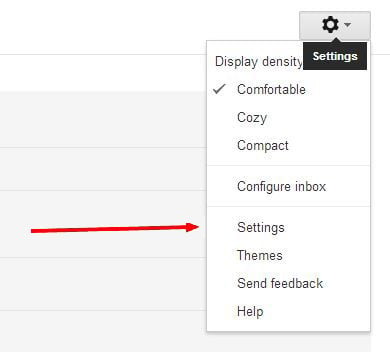
- Choose the setting icon on the right hand side of Gmail:

- From the drop down choose “Settings:”
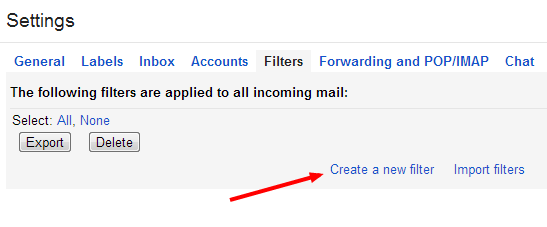
- Select “Filter” from the navigation bar at the top of the page:

- Click create a new filter:
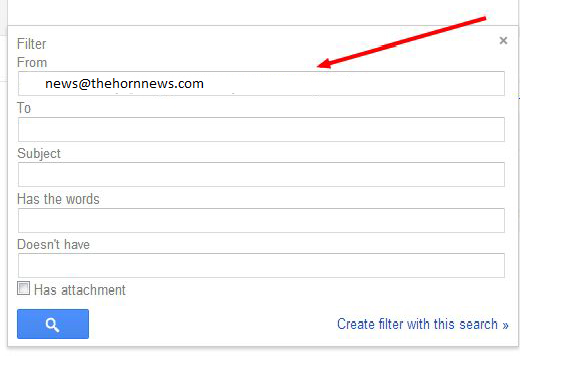
- Add this email address to the top input box labeled “From” address, [email protected]:
*Recently changed from [email protected] to [email protected]*
- Select these filter options:
- Star It
- Never Send it to Spam
- Click Create Filter
*Recently changed from [email protected] to [email protected]*

- After you click the “Create Filter” button, you’re done; thank you for ensuring delivery of your The Horn News subscription.
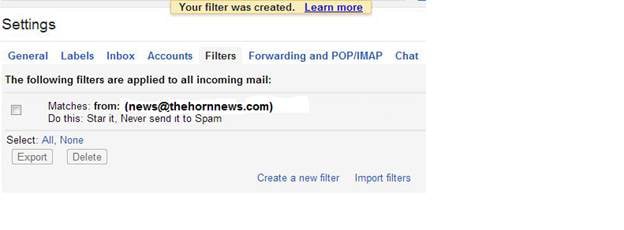
You’re all done!
You will now receive The Horn News issues with no disruption. Thank you for whitelisting us.
AOL
To ensure that you continue to get your emails from The Horn News, please add our email address to your AOL Address Book. AOL has made it easier than ever to do this… Here’s how in three easy steps.
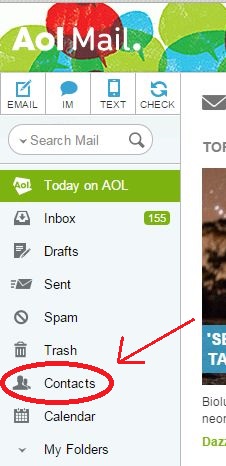
- Log in to AOL Web Mail, and on the left side click on the“Contacts” icon. It looks like this:
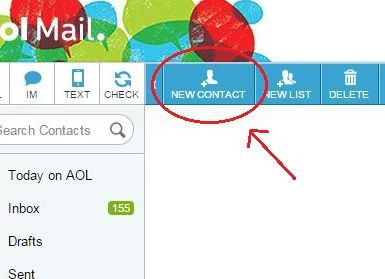
- Click the “New Contact” icon, at the top. It looks like this:
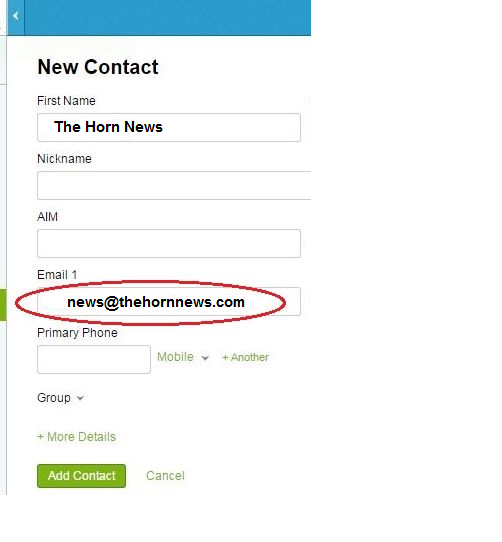
- Enter [email protected] into the email field. Then click “Add Contact.” It looks like this:
You’re all done!
You will now receive The Horn News issues with no disruption. Thank you for whitelisting us.
*Recently changed from [email protected] to [email protected]*
YAHOO!
To ensure that you continue to get your emails from The Horn News, please add our email address to your Yahoo! Address Book.
- In the top left corner under the Yahoo! Mail are button Icons. Select the second from the left it should say “Contacts.” It looks like this:
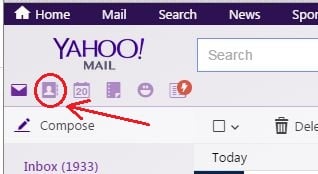
- Directly beneath the icon select “New Contact“. It will open an address book which looks like this:
*Recently changed from [email protected] to [email protected]*
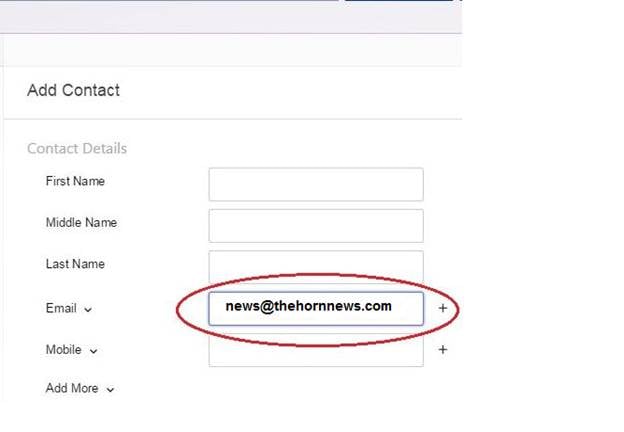
- Simply add [email protected] and click on the button at the bottom that says, Save.
You’re all done!
You will now receive The Horn News issues with no disruption. Thank you for whitelisting us.
OUTLOOK
To ensure that you continue to get your emails from The Horn News, please add our email address to your Outlook Address Book.
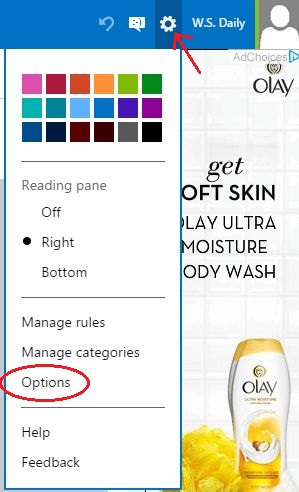
- In the upper right hand corner of your mail window click on the “Settings” icon. Then select “Options” from the drop down menu. It looks like this:
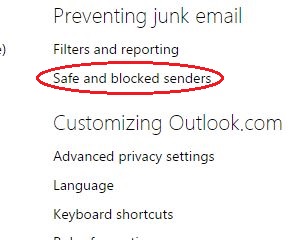
- Next under “Preventing junk email”, click on “Safe and Blocked Senders.” It looks like this:
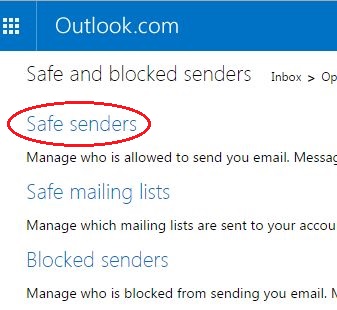
- Click on Safe Senders. It looks like this:
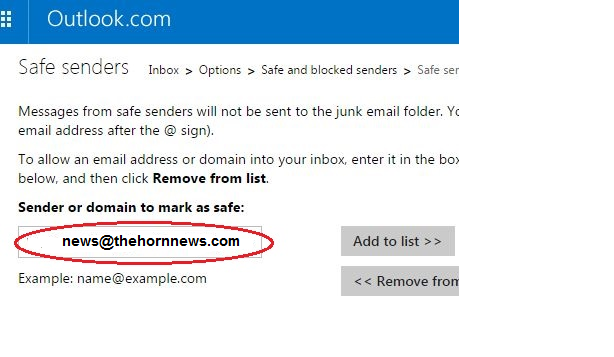
- Enter [email protected] in the space provided and click “Add to List.” It looks like this:
*Recently changed from [email protected] to [email protected]*
You’re all done!
You will now receive The Horn News issues with no disruption. Thank you for whitelisting us.
COMCAST
To ensure that you continue to get your emails from The Horn News, please add our email address to your Comcast filter. Comcast has made it easier than ever to do this… Here’s how in six easy steps:
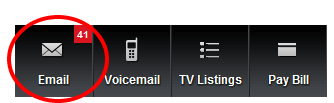
- Once you log in to Comcast, click on the email icon on the right hand side:
- Then click on “Preferences:”

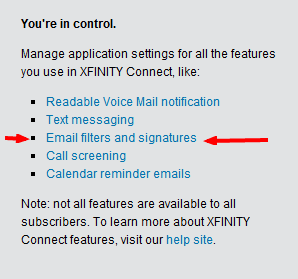
- Click on “Email Filters and Signatures,” located on the right side:
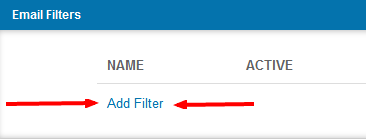
- Click on “Add Filter:”
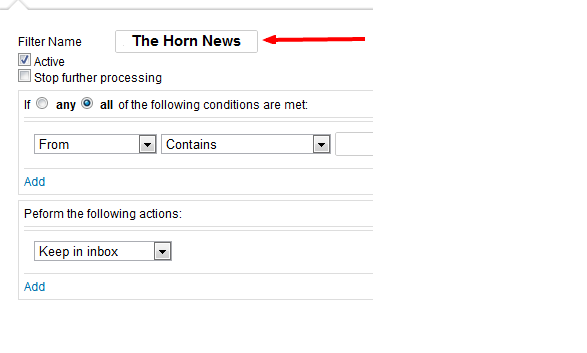
- Add a filter name, like The Horn News:
- Enter the email address [email protected]:
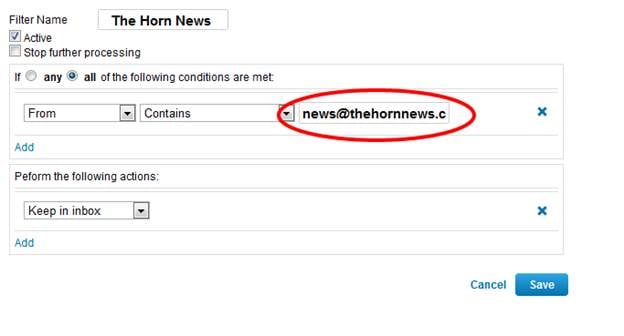
*Recently changed from [email protected] to [email protected]*
Click save and you’re all done!
You will now receive The Horn News issues with no disruption. Thank you for whitelisting us.
Many popular email programs, including older versions of Outlook, Outlook Express, Eudora, and Netscape Mail, don’t provide a convenient way for you to whitelist the folks you want to receive email from. If you’re using this sort of email system and you either aren’t getting email you value or want to make sure you continue to receive it in the future, you can do something about it.
Contact the customer service people or the postmaster at the company that provides your email or internet connection (your ISP). Explain to them what subscriptions are email that you asked for (or paid for) and value. Ask them if they can whitelist the sender. (Unfortunately, some email systems don’t allow whitelisting.) If they do whitelist, they’ll probably ask you for some information about the publisher. Here’s what to tell them:
- Sending Address: If your ISP asks for the “sender” or “from” address, give them the address [email protected].
- Domain: If your ISP needs to know the domain The Horn News is mailing from, try forwarding them one of our emails. The domain is in the “header” of every email. If that doesn’t work, you’ll have to contact the publisher to ask them what domain they’re sending from. There might be more than one, especially if you have multiple subscriptions.
- IP Address: If your ISP asks for the sending IP address, try forwarding them one of our emails. The “originating IP” is in the “header” of every email. If that doesn’t work, you’ll have to contact us to ask what IP address we’re sending from.
Thank you for whitelisting us.